
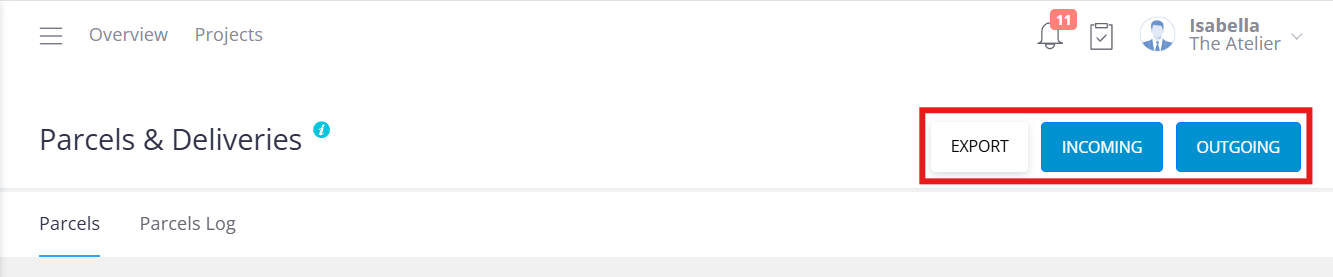
- Click Incoming in the top-right corner.
- Select the Building and Apartment Number from the dropdown lists.
- Choose the Recipient (automatically generated from the apartment selection).
- Enter any general information—this will appear in the member’s app.
- Add parcel details such as description, count, colour, courier, and location (for internal use).
- Edit the notification message and choose Push, SMS, or Email notifications.
- Review the Collected By name and update if needed.
- Optionally, add a comment to the recipient (e.g., “Please collect your parcel from the concierge desk”).
- Select the staff member recording the parcel.
- Upload an image if required (management use only).
- Click Add Parcel to save.