
The platform can automatically approve users who register with an approved company email domain. When an email domain is added, any new user who registers using an email address with that domain will be automatically set to Approved. Below are the steps to add an email domain:
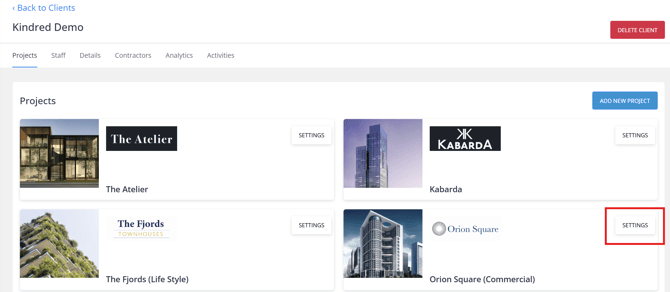
1. Go to the portfolio, and access Settings of a particular project:
Note: Only users with Manager access can access the project Settings section.
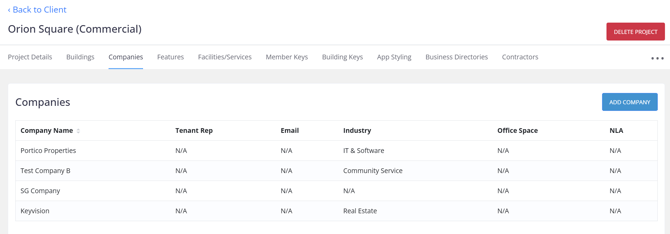
2. Select the Companies tab:
3. Click on a company to access its settings:
Note: This functionality is only applicable to Commercial project types.
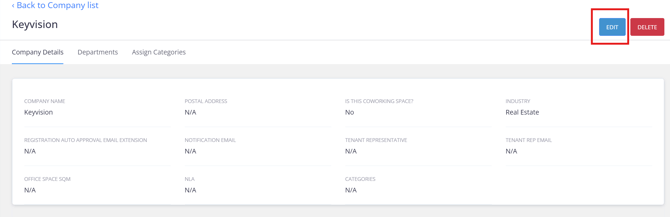
4. Click Edit:
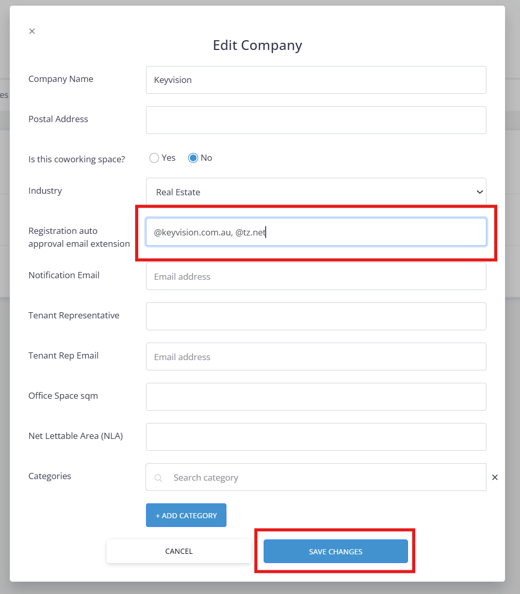
5. Add the email domain(s) in the Registration auto approval email extension field and click Save Changes to update:
Note: Multiple email domains can be added to the Registration auto-approval email extension field. Each domain should start with @ and be separated by a comma.
Example:
@keyvision.com.au, @tz.net
How it works
For example, if the field is set to: @companyname.com.au
A user registering with: user@companyname.com.au will be automatically approved during registration.
Once the email domain has been added:
- The user registers using an email address with the approved domain via the mobile app.
- The system recognises the matching domain.
- The user is automatically approved.
- The user does not need to be manually approved by an administrator.