---
title: Creating Work Orders
description: Creating a Work Order
---
[Skip to content](https://knowledge.keyvision.com.au/creating-work-orders#main-content)
English - Australia
Show submenu for translations

Open main navigation
Close main navigation
- English - Australia
Show submenu for translations
- Contact us
Contact us
How can we help you?
- There are no suggestions because the search field is empty.
1. [Keyvision](https://knowledge.keyvision.com.au/?hsLang=en-au)
2. [Place Management](https://knowledge.keyvision.com.au/place-management?hsLang=en-au)
3. [Work Orders](https://knowledge.keyvision.com.au/place-management?hsLang=en-au#work-orders)
5 March 2026
# Creating Work Orders
Work orders can be created from three areas in the dashboard:
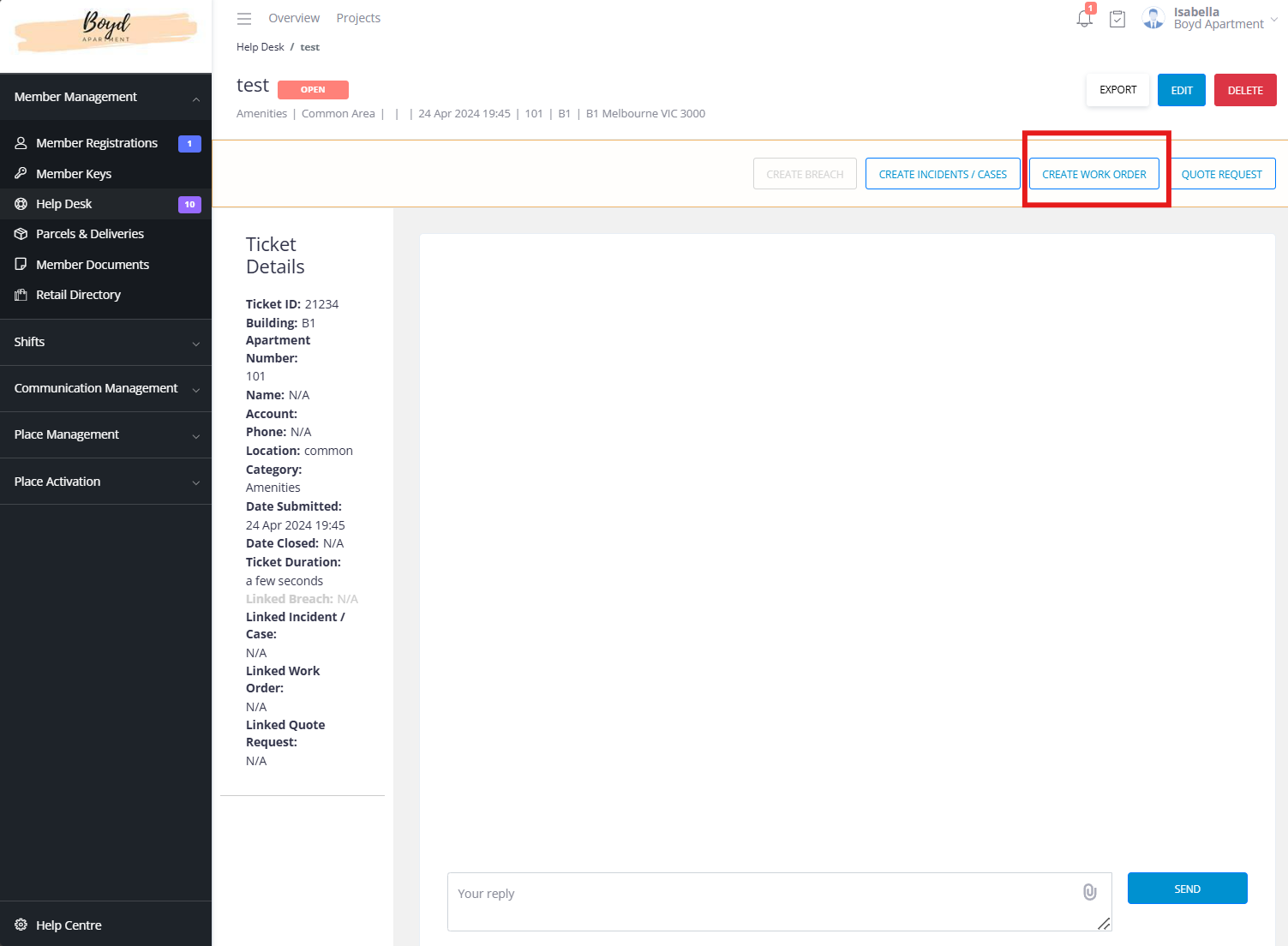
### **1. From Help Desk (Member Management)**
There are numerous instances where residents report issues that necessitate the creation of a work order. In such cases, it is important to document where and by whom the issue was reported. By generating a work order from a help desk ticket, you can establish a link between the work order and the ticket. This linkage enables you to easily reference the original help desk ticket and vice versa. The Work Order badge is displayed on the ticket when it is linked to a work order.
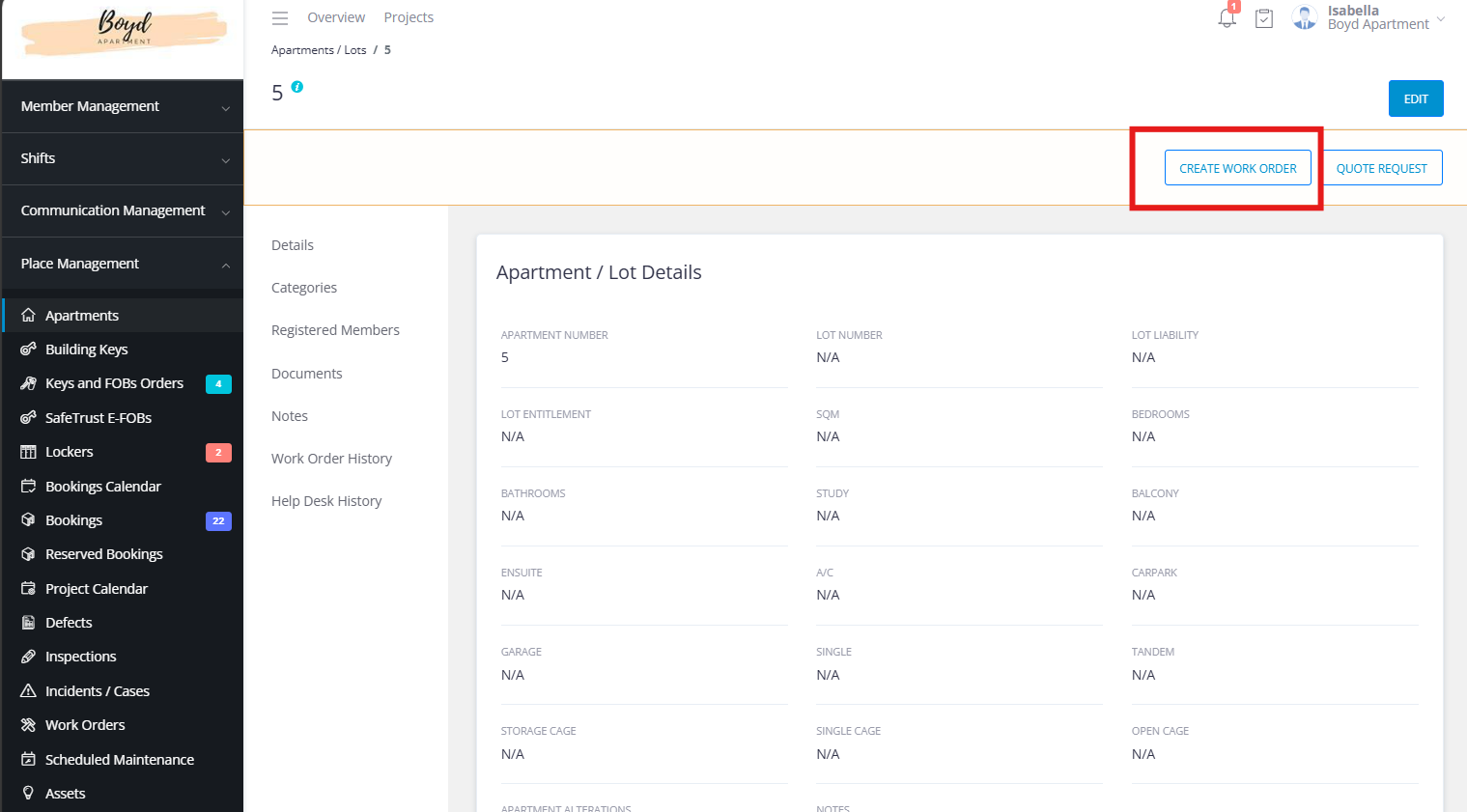
### **2. From Apartment/Address (Place Management)**
When you need to create a work order for a specific apartment, it may be more convenient for you to initiate the work order directly from that apartment's profile. This approach allows you to access important information, notes, and documents related to the apartment, as well as any previously created work orders. This information can assist you in the process of creating a new work order. Additionally, when you create a work order using this feature, the building and apartments for residential projects, or stage and the address for lifestyle projects are automatically populated. You can quickly view summarized information about work orders associated with a particular apartment and access the work order details by clicking the provided link.
### **3. From the Work Orders Feature (Place Management)**
The **Work Orders** tab is the central hub, with three sections:
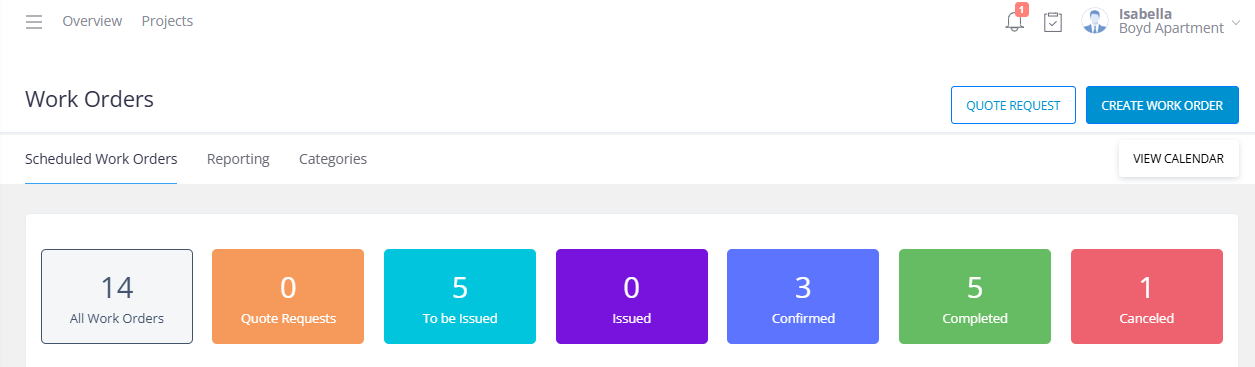
#### **Scheduled Work Orders**
- View counters for each status:
- **Quote Requests** (orange)
- **To Be Issued** (light blue)
- **Issued** (purple)
- **Confirmed** (blue)
- **Completed** (green)
- **Cancelled** (red)
- Search, filter, and sort work orders.
- Create new orders or quote requests using the **Create Work Order** button.
- Open a work order to:
- Update status, assign contractors, add budgets, notes, and assets.
- Schedule visits and email contractors.
- Export or preview as a PDF at any stage.
- Edit, cancel, or delete orders.
- Use the **Project Calendar** to see work order schedules in purple.
#### **Reporting**
The 'Report' tab allows you to generate reports by applying filters for Work Order type, category, subcategory, Work Order Status, Contractor, Building, and Apartments within the selected time frame. You can then export these reports as PDF and/or CSV files.
#### **Categories**
As mentioned earlier, you can create lists of categories and subcategories for your work orders within this tab.
- [Communication Management](https://knowledge.keyvision.com.au/communication-management?hsLang=en-au#main-content)
- [Categories](https://knowledge.keyvision.com.au/communication-management?hsLang=en-au#categories)
- [Emails](https://knowledge.keyvision.com.au/communication-management?hsLang=en-au#emails)
- [Newsfeed](https://knowledge.keyvision.com.au/communication-management?hsLang=en-au#newsfeed)
- [Online Forms](https://knowledge.keyvision.com.au/communication-management?hsLang=en-au#online-forms)
- [Member Management](https://knowledge.keyvision.com.au/member-management?hsLang=en-au#main-content)
- [Help Desk](https://knowledge.keyvision.com.au/member-management?hsLang=en-au#help-desk)
- [Member Registrations](https://knowledge.keyvision.com.au/member-management?hsLang=en-au#member-registrations)
- [Parcels & Deliveries](https://knowledge.keyvision.com.au/member-management?hsLang=en-au#parcels-deliveries)
- [Place Management](https://knowledge.keyvision.com.au/place-management?hsLang=en-au#main-content)
- [Building Keys](https://knowledge.keyvision.com.au/place-management?hsLang=en-au#building-keys)
- [Contractors](https://knowledge.keyvision.com.au/place-management?hsLang=en-au#contractors)
- [Keys & Fobs](https://knowledge.keyvision.com.au/place-management?hsLang=en-au#keys-fobs)
- [Work Orders](https://knowledge.keyvision.com.au/place-management?hsLang=en-au#work-orders)
- [Place Activation](https://knowledge.keyvision.com.au/place-activation?hsLang=en-au#main-content)
- [Event Calendar](https://knowledge.keyvision.com.au/place-activation?hsLang=en-au#event-calendar)
- [Management Access, Settings & Permissions](https://knowledge.keyvision.com.au/management-access-settings-permissions?hsLang=en-au)
- [Release Notes](https://knowledge.keyvision.com.au/release-notes?hsLang=en-au#main-content)
- [2026](https://knowledge.keyvision.com.au/release-notes?hsLang=en-au#2026)
- [Dashboard Access](https://knowledge.keyvision.com.au/dashboard-access?hsLang=en-au)
- [Essentials](https://knowledge.keyvision.com.au/essentials?hsLang=en-au#main-content)
- [How To's](https://knowledge.keyvision.com.au/essentials?hsLang=en-au#how-tos)
[](https://keyvision.com.au/?hsLang=en-au)
[mailto:email@email.com](mailto:email@email.com)
Copyright © 2026, Keyvision