---
title: Helpdesk Overview
description: The help desk feature in the Keyvision property management platform is where all member support requests come through and the management team can communicate with them via the app.
---
[Skip to content](https://knowledge.keyvision.com.au/helpdesk-overview#main-content)
English - Australia
Show submenu for translations

Open main navigation
Close main navigation
- English - Australia
Show submenu for translations
- Contact us
Contact us
How can we help you?
- There are no suggestions because the search field is empty.
1. [Keyvision](https://knowledge.keyvision.com.au/?hsLang=en-au)
2. [Member Management](https://knowledge.keyvision.com.au/member-management?hsLang=en-au)
3. [Help Desk](https://knowledge.keyvision.com.au/member-management?hsLang=en-au#help-desk)
9 September 2025
# Helpdesk Overview
## The Help Desk feature is where all support requests come through from the members, and where the management team can communicate with them via the App.
The Help Desk feature is where all support requests come through from the members, and where the management team can communicate with them via the App. This is different from the Help Centre that provides the knowledgebase, tutorials videos and dashboard tickets for the Keyvision platform.
### Where to find the Help Desk
To navigate to Help Desk, click and expand the Member Management tab on the left-hand side menu in the Keyvision Dashboard. Then click Help Desk to open up the main view.
###### 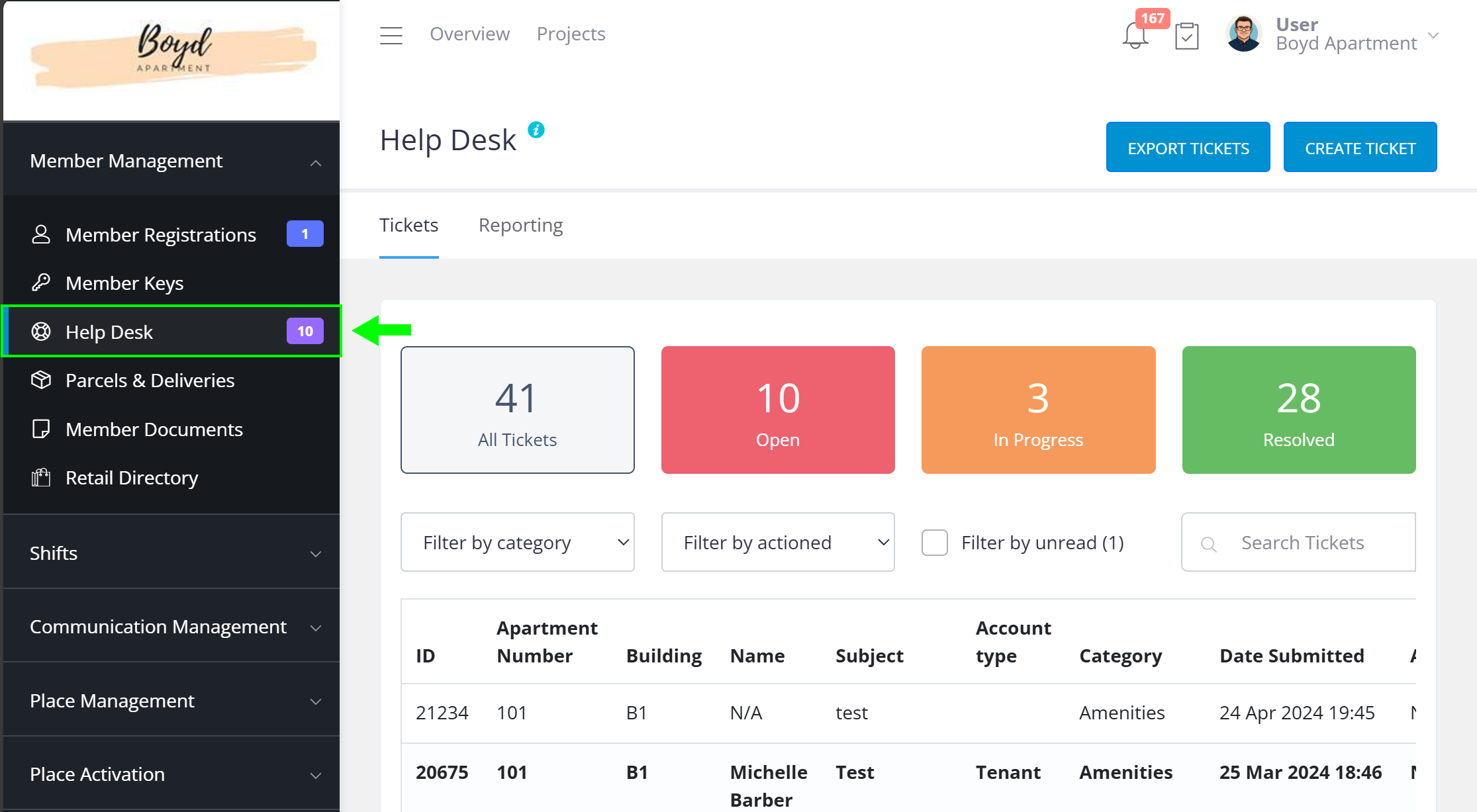 Help desk tickets is conveniently located under Member Management.
### Main Help Desk Tickets View
In the main view, you will see the four counters, which when clicked also have the ability to filter the list of help desk items below. Each counter shows the total number of Help Desk tickets, with each colour representing the tickets of a particular status. The total number of open tickets is shown in red, the total number of in-progress tickets, shown in orange, and finally, the total number of resolved tickets, shown in green.
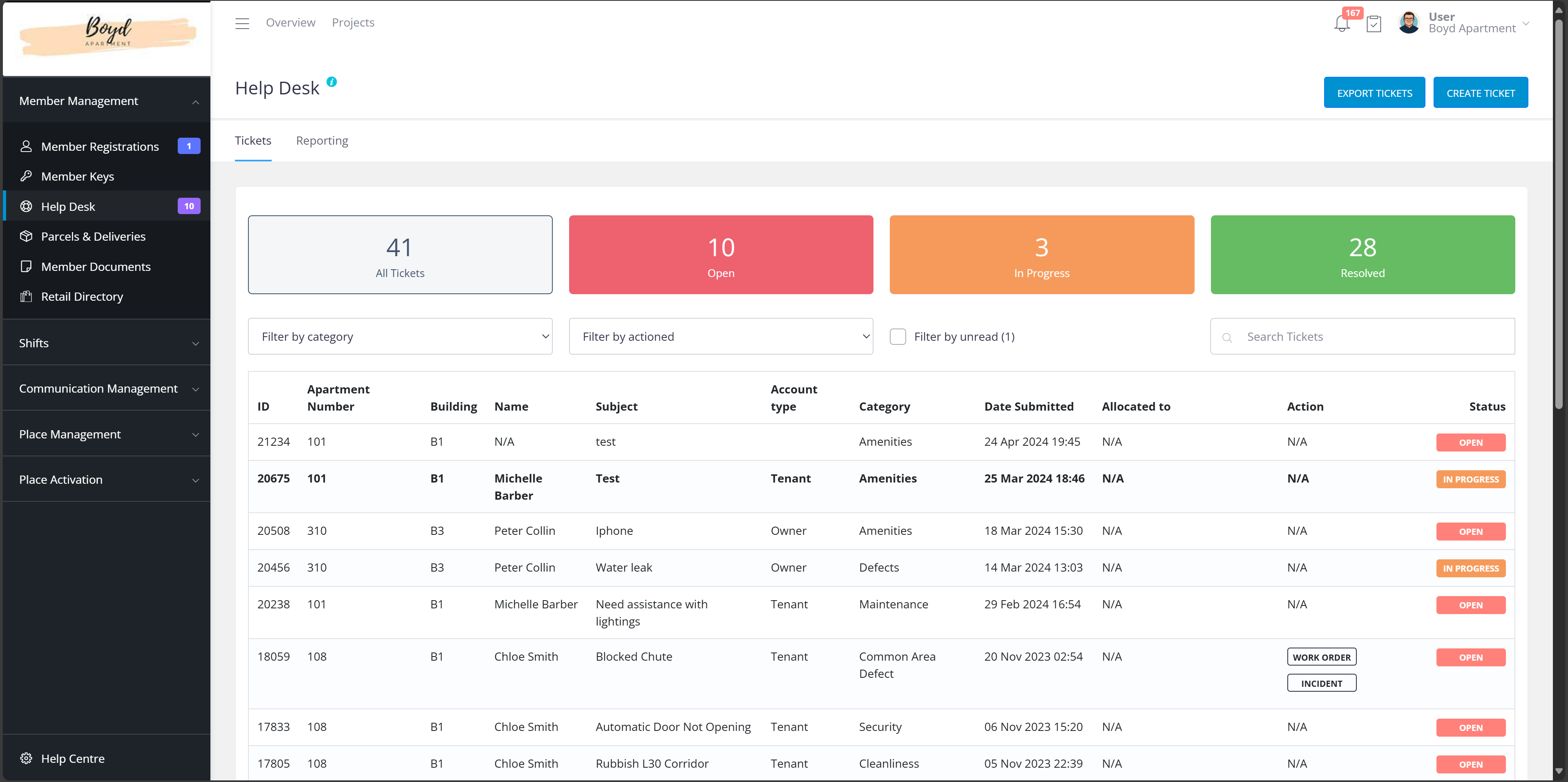
Under the counters, the tickets are listed with the information of ticket ID, apartment number, building name, member’s name, the subject of the ticket, member’s account type, category of the ticket, date when the ticket is submitted, the name of the staff member who is allocated to a the ticket, any further actions made (if applicable) and finally, the status of the ticket.
You can filter the tickets by category, further action, unread messages or simply search by the keyword on the search bar, using keywords such as member’s name, ticket subject and apartment number to find the ticket you are looking for.
You can also change the page or how many tickets to display per page, using the pagination interface at the bottom of the main view.
### Managing a Ticket
When a new ticket is submitted by a member, a notification badge will show on the Help Desk feature on the left-hand side menu. On the main view page, new tickets appears as ‘Open’ on the top of the list, and the text is shown in bold.
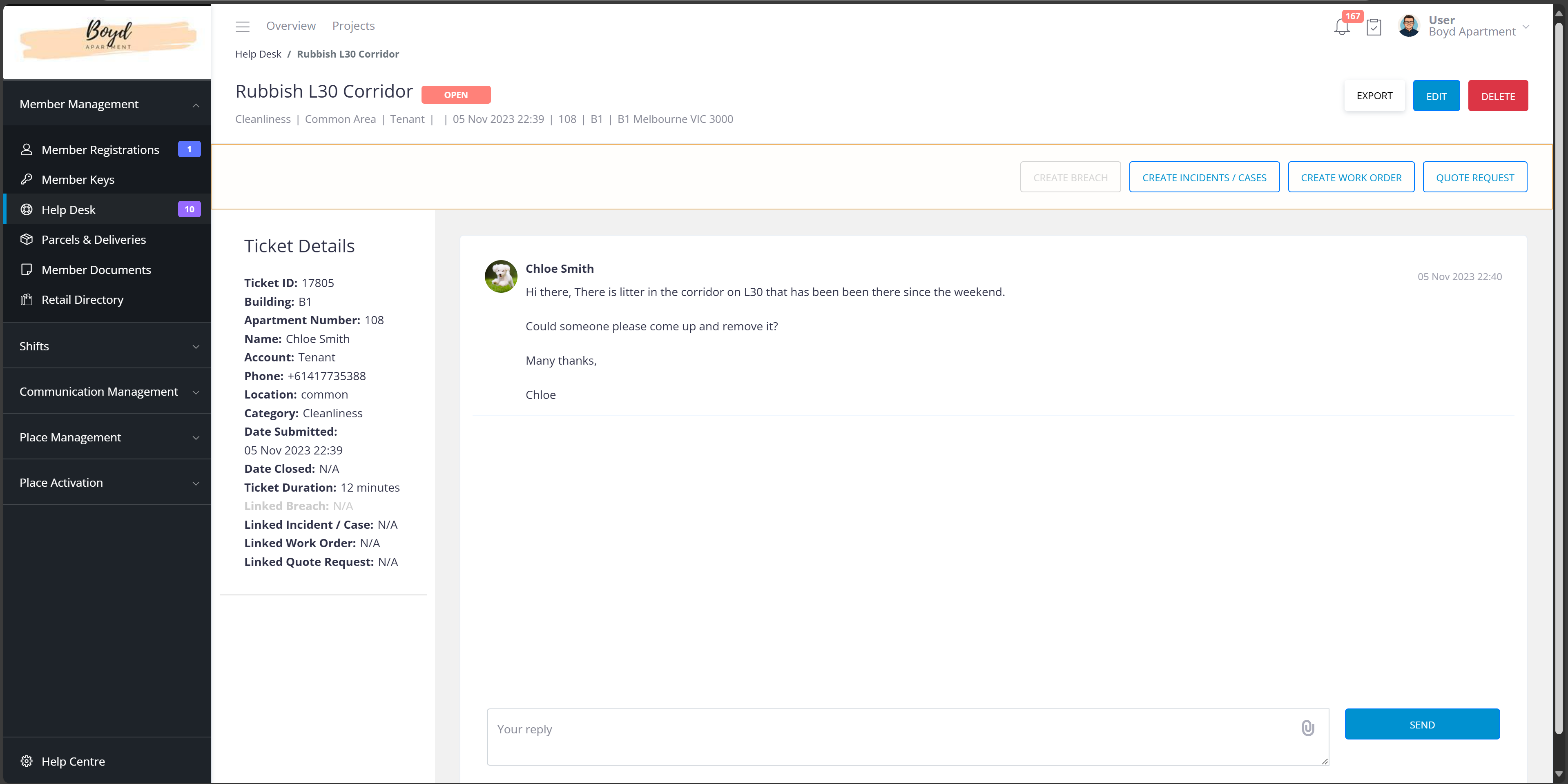
If you click on a ticket, you will be taken to a new page where you can see the title of the ticket, the type of ticket, the location, the member’s account type, the date and time the tickets are submitted, and the apartment details on the top of the page. More details are available on the left-hand side such as ticket ID, phone number, how long the ticket is opened for and further actions if applicable.
### Discuss Ticket with a Member
In the chat window of this page, you can send messages and documents to the member via the Mobile App. When you make a comment here, a notification will be sent to the member’s Mobile App.
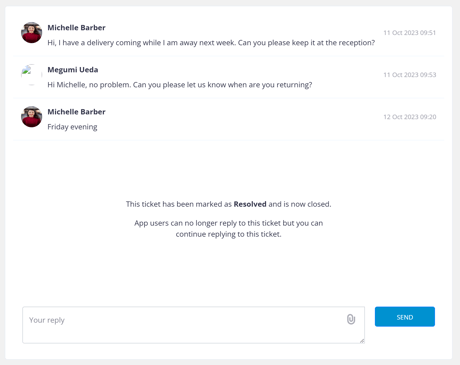
Once you reply or have done some work on the ticket, you can change the status of the ticket by clicking the ‘Edit’ button and then choosing ‘in progress’ or ‘resolved’ under the status field. You can also select a staff member to allocate to a ticket and update the category and location if required.
### Raising Incidents, Cases, Quotes & Work Orders from Tickets
From the ticket page, you can also take further actions by creating an incident report, raising a work order or request a quote if your project uses the Keyvision Incident & Cases and Work Order feature. When you create these items from the original ticket, they will be linked so that if the person handling the word order, incident, case or quote needs to refer back to the original ticket they will be bale to easily do so by clicking on the linked Ticket ID. These features can be found under the Place Management tab on the left-hand side menu. For more information on these features, separate tutorial videos are available in the Help Centre.
### Export Individual Tickets as a PDF Report
On the ticket details page, you can export the details of the ticket by PDF if required. When a new message is received on the tickets, the text of the main view page will be displayed as bold again, so you know which ticket has a new message.
You can also create a ticket from the dashboard to communicate with the member by clicking the ‘Create ticket’ button on the top right-hand corner. A new form will open for you to enter the information and start communicating.
### Exporting PDF & CSV Reports for Help Desk
On the main view page, you can find the ‘Report’ tab where you can generate reports by filtering with ticket status, category, and allocated staff name during the selected duration and export the reports as PDF and or to a CSV file.
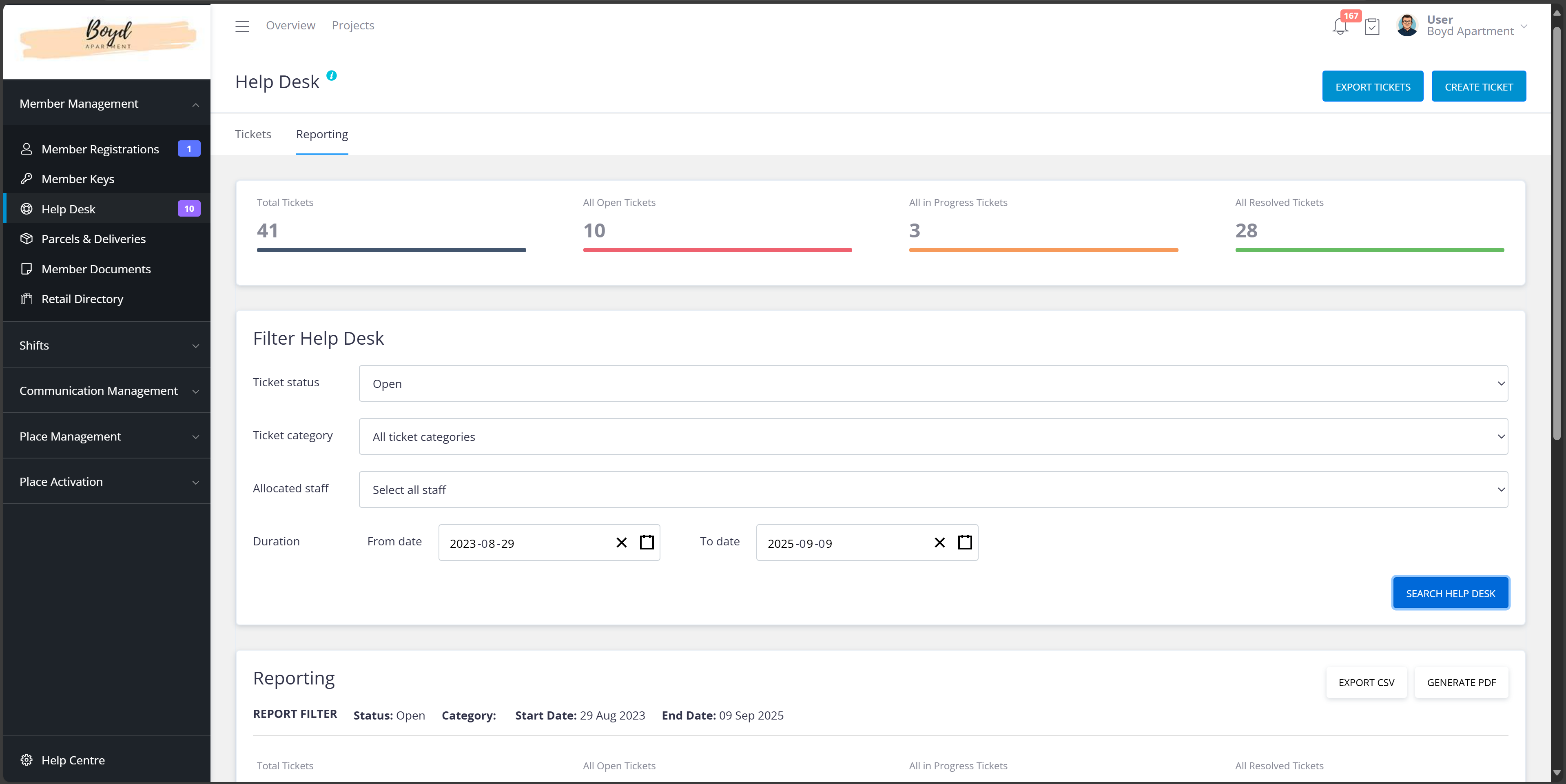
If you wish to export all tickets as CSV files, you can do so by clicking the ‘Export Tickets’ button on the top right-hand corner.
- [Communication Management](https://knowledge.keyvision.com.au/communication-management?hsLang=en-au#main-content)
- [Categories](https://knowledge.keyvision.com.au/communication-management?hsLang=en-au#categories)
- [Emails](https://knowledge.keyvision.com.au/communication-management?hsLang=en-au#emails)
- [Newsfeed](https://knowledge.keyvision.com.au/communication-management?hsLang=en-au#newsfeed)
- [Online Forms](https://knowledge.keyvision.com.au/communication-management?hsLang=en-au#online-forms)
- [Member Management](https://knowledge.keyvision.com.au/member-management?hsLang=en-au#main-content)
- [Help Desk](https://knowledge.keyvision.com.au/member-management?hsLang=en-au#help-desk)
- [Member Registrations](https://knowledge.keyvision.com.au/member-management?hsLang=en-au#member-registrations)
- [Parcels & Deliveries](https://knowledge.keyvision.com.au/member-management?hsLang=en-au#parcels-deliveries)
- [Place Management](https://knowledge.keyvision.com.au/place-management?hsLang=en-au#main-content)
- [Building Keys](https://knowledge.keyvision.com.au/place-management?hsLang=en-au#building-keys)
- [Contractors](https://knowledge.keyvision.com.au/place-management?hsLang=en-au#contractors)
- [Keys & Fobs](https://knowledge.keyvision.com.au/place-management?hsLang=en-au#keys-fobs)
- [Work Orders](https://knowledge.keyvision.com.au/place-management?hsLang=en-au#work-orders)
- [Place Activation](https://knowledge.keyvision.com.au/place-activation?hsLang=en-au#main-content)
- [Event Calendar](https://knowledge.keyvision.com.au/place-activation?hsLang=en-au#event-calendar)
- [Management Access, Settings & Permissions](https://knowledge.keyvision.com.au/management-access-settings-permissions?hsLang=en-au)
- [Release Notes](https://knowledge.keyvision.com.au/release-notes?hsLang=en-au#main-content)
- [2026](https://knowledge.keyvision.com.au/release-notes?hsLang=en-au#2026)
- [Dashboard Access](https://knowledge.keyvision.com.au/dashboard-access?hsLang=en-au)
- [Essentials](https://knowledge.keyvision.com.au/essentials?hsLang=en-au#main-content)
- [How To's](https://knowledge.keyvision.com.au/essentials?hsLang=en-au#how-tos)
[](https://keyvision.com.au/?hsLang=en-au)
[mailto:email@email.com](mailto:email@email.com)
Copyright © 2026, Keyvision