
Exporting as PDF
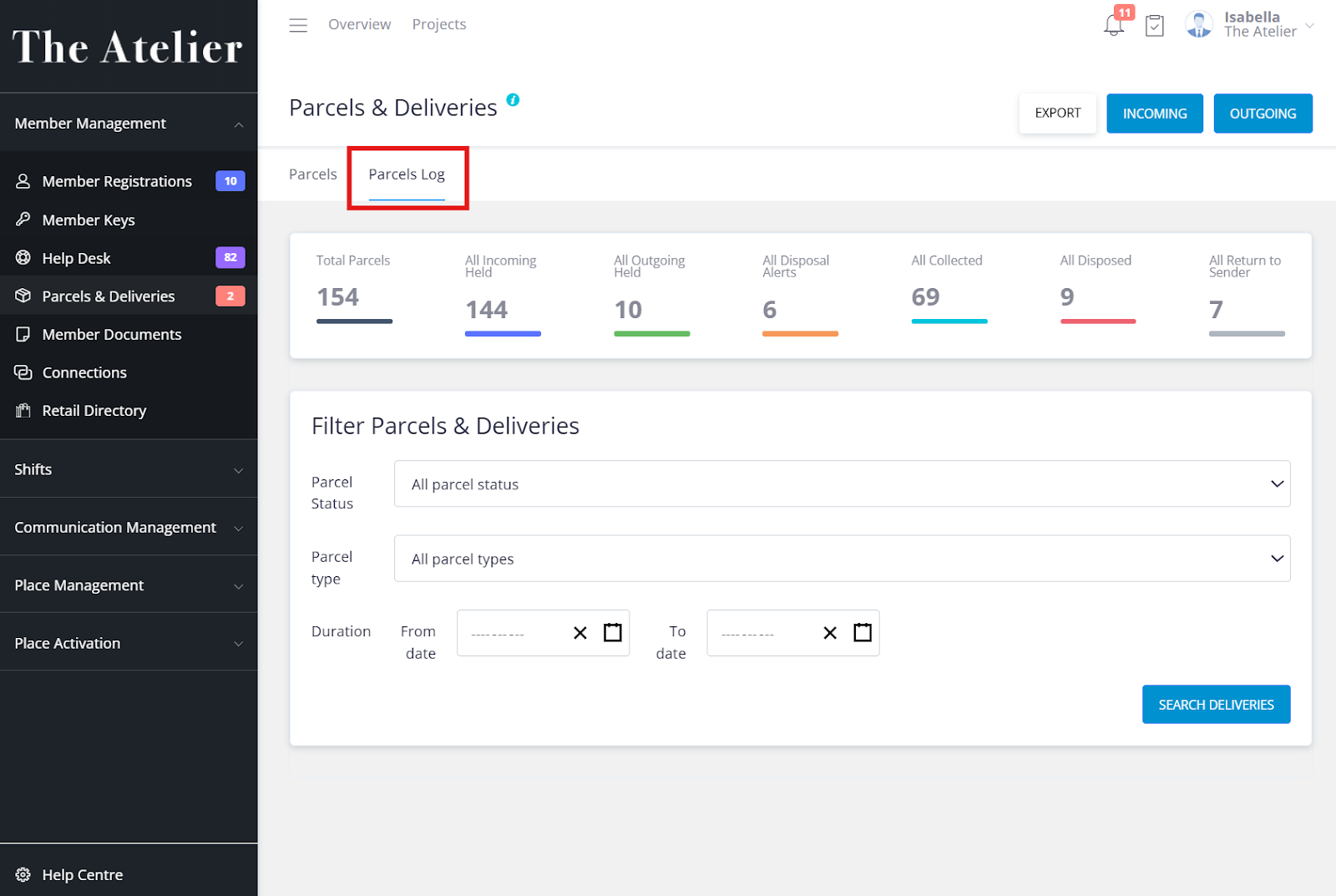
- Go to the Parcels Log tab.
- Filter by status, type, and date range.
- Click Search Deliveries to display results.
- Click Generate PDF to download your report.
Note: For large data sets, use the CSV export option instead.
Exporting as CSV
- From the Parcels Log tab, filter and click Search Registrations.
- Click Export CSV and save the file.
- The file includes parcel details such as building, recipient, apartment number, item description, status, delivery date, and staff member.
- You can open the CSV in Excel for further filtering or reporting.
- To export all parcel records, click Export in the top-right corner.
Further Support
For more help or additional tutorials, visit the Help Centre from the bottom-left corner of the Keyvision Dashboard.