---
title: Set Up Microsoft 365 Email Sending
description: Learn how to configure Microsoft 365 email sending in Keyvision using Microsoft Graph and your Entra credentials.
---
[Skip to content](https://knowledge.keyvision.com.au/set-up-microsoft-365-email-sending#main-content)
English - Australia
Show submenu for translations

Open main navigation
Close main navigation
- English - Australia
Show submenu for translations
- Contact us
Contact us
How can we help you?
- There are no suggestions because the search field is empty.
1. [Keyvision](https://knowledge.keyvision.com.au/?hsLang=en-au)
2. [Management Access, Settings & Permissions](https://knowledge.keyvision.com.au/management-access-settings-permissions?hsLang=en-au)
30 July 2026
# Set Up Microsoft 365 Email Sending
Keyvision supports secure OAuth email sending through Microsoft 365. This allows platform communications to be sent from your nominated email address.
**Note:** This setting can only be accessed by a dashboard user with **Manager** or **Client** level of access.
### Before you begin
You will need the following details:
- Entra Tenant ID
- Entra Client ID
- Entra Client Secret
- Sender Address & Notification Email (your email address)
### Update the outgoing email setup
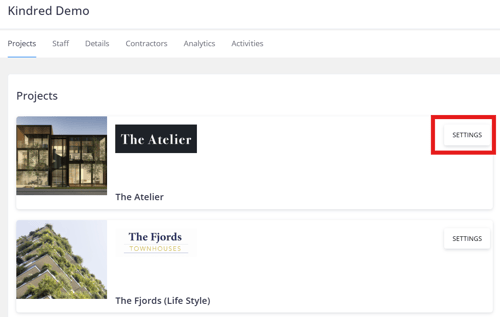
1. Open the relevant project in the Keyvision dashboard.
2. Go to **Settings**.
3. Select the **three-dot menu **to the right.

4. Select **Email Setup**.
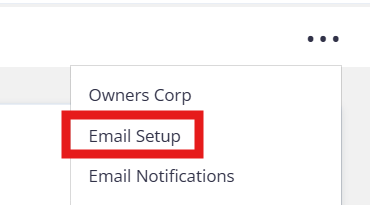
5. Under **Outgoing Email Setup**, click **Edit**.

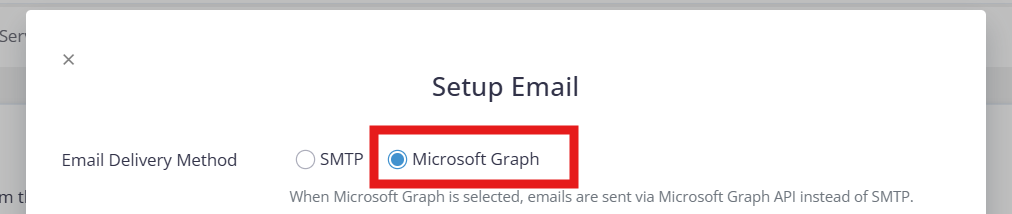
6. Select **Microsoft Graph** as the email method.
7. Enter the required Microsoft Entra and sender details.
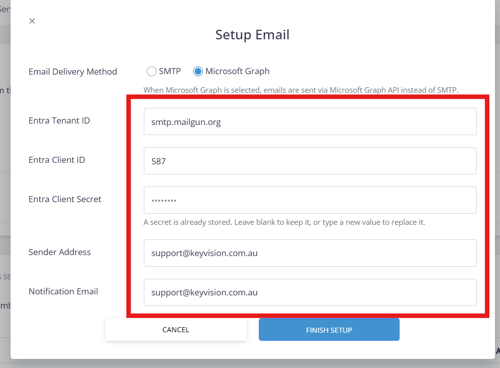
8. Click **Finish Setup** to save the configuration.
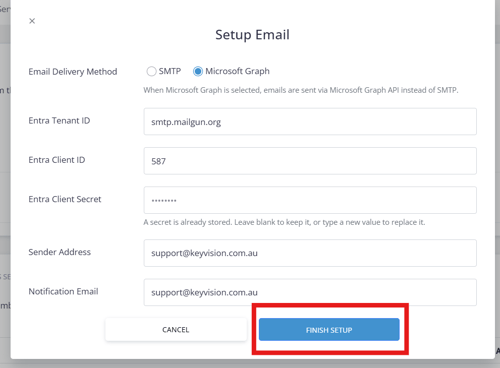
Your project communications will now be sent from the nominated Microsoft 365 email address.
- [Communication Management](https://knowledge.keyvision.com.au/communication-management?hsLang=en-au#main-content)
- [Categories](https://knowledge.keyvision.com.au/communication-management?hsLang=en-au#categories)
- [Emails](https://knowledge.keyvision.com.au/communication-management?hsLang=en-au#emails)
- [Newsfeed](https://knowledge.keyvision.com.au/communication-management?hsLang=en-au#newsfeed)
- [Online Forms](https://knowledge.keyvision.com.au/communication-management?hsLang=en-au#online-forms)
- [Member Management](https://knowledge.keyvision.com.au/member-management?hsLang=en-au#main-content)
- [Help Desk](https://knowledge.keyvision.com.au/member-management?hsLang=en-au#help-desk)
- [Member Registrations](https://knowledge.keyvision.com.au/member-management?hsLang=en-au#member-registrations)
- [Parcels & Deliveries](https://knowledge.keyvision.com.au/member-management?hsLang=en-au#parcels-deliveries)
- [Place Management](https://knowledge.keyvision.com.au/place-management?hsLang=en-au#main-content)
- [Building Keys](https://knowledge.keyvision.com.au/place-management?hsLang=en-au#building-keys)
- [Contractors](https://knowledge.keyvision.com.au/place-management?hsLang=en-au#contractors)
- [Keys & Fobs](https://knowledge.keyvision.com.au/place-management?hsLang=en-au#keys-fobs)
- [Work Orders](https://knowledge.keyvision.com.au/place-management?hsLang=en-au#work-orders)
- [Place Activation](https://knowledge.keyvision.com.au/place-activation?hsLang=en-au#main-content)
- [Event Calendar](https://knowledge.keyvision.com.au/place-activation?hsLang=en-au#event-calendar)
- [Management Access, Settings & Permissions](https://knowledge.keyvision.com.au/management-access-settings-permissions?hsLang=en-au)
- [Release Notes](https://knowledge.keyvision.com.au/release-notes?hsLang=en-au#main-content)
- [2026](https://knowledge.keyvision.com.au/release-notes?hsLang=en-au#2026)
- [Dashboard Access](https://knowledge.keyvision.com.au/dashboard-access?hsLang=en-au)
- [Essentials](https://knowledge.keyvision.com.au/essentials?hsLang=en-au#main-content)
- [How To's](https://knowledge.keyvision.com.au/essentials?hsLang=en-au#how-tos)
[](https://keyvision.com.au/?hsLang=en-au)
[mailto:email@email.com](mailto:email@email.com)
Copyright © 2026, Keyvision